
Fenpo
Phone notifications, messages, files and calls on Windows, no cloud.
Replaces Airdroid, Droid Transfer
Who it's for
If you answer texts or take calls during computer work, Fenpo puts both on screen without picking up the phone. Notifications arrive on Windows, replies go from the PC keyboard, and incoming calls show in a small overlay you can answer or dismiss.
If your work phone is managed by MDM software, check whether the MDM profile restricts Bluetooth pairing apps. MDM policies can block the notification bridge on Android.
Fenpo Kamera makes the phone's camera available as a standard Windows webcam in Teams, Zoom, Meet, and OBS. A phone on a small stand can outperform a USB webcam in image quality, with no additional hardware cost.
Fenpo Kamera requires the Fenpo app to remain open and the phone screen active during the call. If the phone locks, the camera feed stops. It is not a background service.
File transfers go over local Wi-Fi without a cable. Right-click a file in File Explorer and send it to the phone, or share a photo from the phone's share sheet to a PC folder. The LocalSend integration accepts files from that app as well.
Fenpo only transfers files on the local Wi-Fi network. For moving files between devices on different networks or over cellular, cloud storage or Syncthing is a better fit.
The problem
Using a smartphone while working at a Windows PC creates a constant interruption cycle. Picking up the device, checking notifications, dismissing them, and switching back to the keyboard dozens of times a day adds up quickly. The phone becomes a source of lost focus rather than a tool for work. Existing commercial apps that address this problem typically require creating an account and routing personal messages and notifications through the developer's servers, meaning you trust a third-party service with the content of conversations and calls. Others are limited to file transfers over USB cables and do not address notifications or calls at all. Paid subscription tiers lock full features behind monthly fees for what is a local connectivity challenge between devices you already own.
How it works
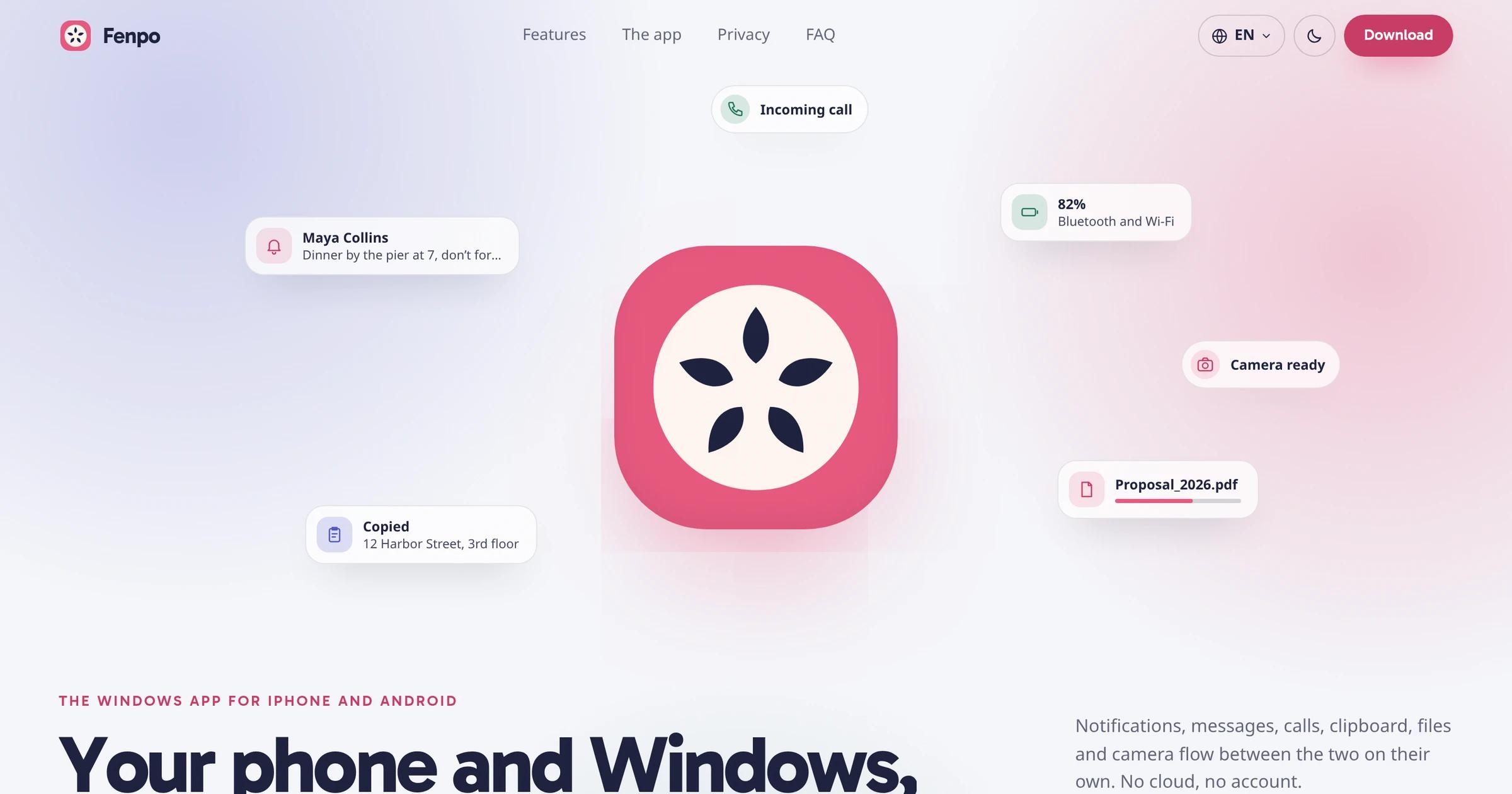
Phone notifications arrive as Windows notifications, with dismiss and reply actions from the PC. On iPhone, this works over Bluetooth without installing any app on the phone, using iOS's native ANCS notification service. On Android, the Fenpo app forwards notifications with reply support for any notification that includes a reply action.
Read and compose text messages from the PC keyboard, sent through the phone's own number via Bluetooth MAP. Incoming calls appear in a small overlay at the top of the screen; answer or decline from the PC while the audio stays on the phone.
Copy on the PC and paste on the phone, or copy on the phone and paste on the PC. Android clipboard syncs automatically in both directions. On iPhone, iOS restricts background clipboard access, so sending from phone to PC requires one tap via Control Center, the Action button, or the share sheet; the reverse direction is automatic when Fenpo is open.
Transfer files in both directions over the local network without a cable. File Explorer gains a right-click 'Send to phone with Fenpo' command. Photos shared from the phone's share sheet land in a folder on the PC. Fenpo also accepts incoming files from LocalSend apps.
Fenpo Kamera is a virtual camera driver bundled with the Windows app that makes the phone's camera available to Teams, Zoom, Meet, OBS, and any browser. Choose front or back camera or mirror the image. The installer asks for administrator approval once at setup.
The PC locks automatically when the phone moves beyond Bluetooth range, and shows a password prompt when it returns. The phone also works as a touchpad, keyboard, and presentation remote for the PC. The phone's hotspot is joinable from the PC in one click after a one-time name and password entry in Fenpo on the phone.
Features
- Notifications from iPhone and Android
- Messages and calls from the keyboard
- Bidirectional clipboard
- Files and photos over local Wi-Fi
- Phone as a Windows webcam
- Proximity lock and phone remote control
How to install
Download Fenpo for Windows from the Microsoft Store or from GitHub Releases: https://github.com/Milvasoft/fenpo/releases/latest
Recommended for this setup
Strengths
- No server and no account: All connections go directly between phone and PC over Bluetooth and local Wi-Fi, encrypted. Fenpo has no authentication server, no cloud infrastructure, and no account to create. The only internet request the app makes is to download app icons.
- iPhone works without a phone app for core features: On iPhone, notifications, messages, calls, and media controls reach the PC over Bluetooth without any app installed on the phone. Fenpo reads the Bluetooth profiles iOS exposes natively (ANCS, AMS, MAP). Files, clipboard, and the camera require the Fenpo iOS app, which is in App Store review.
- MIT licensed, fully auditable source: Windows, iPhone, and Android code is MIT licensed and published on GitHub. The source is auditable, forkable, and usable in commercial contexts without restriction. The companion Fenpo Cast app for Android TV screen mirroring lives in a separate repository under GPL-3.0.
- Security-forward pairing: Pairing uses a QR code on the PC that carries the PC's certificate fingerprint and a one-time token. BLE messages use AES-256-GCM with a key exchanged at pairing. Data transfers use TLS 1.3 with pinned certificates on both sides, so no certificate authority can intercept the channel.
Trade-offs
- Windows 11 only, Bluetooth adapter required: Fenpo requires Windows 11 22H2 or later and a Bluetooth adapter on the PC. Windows 10 and all versions of macOS and Linux are unsupported. Users on older Windows versions or non-Windows machines have no path to use Fenpo.
- iPhone app still in App Store review: Full iPhone feature support, including files, clipboard, photos, and the camera, requires the Fenpo iOS app. At the time of writing, the iOS app was in App Store review and not publicly available. Bluetooth-only iPhone features (notifications, messages, calls) work without the app.
- Very new project with limited history: Fenpo was created in October 2026 and has 2 GitHub stars. The project has not accumulated the community feedback, issue history, or long-term stability record of established tools. Features are actively shipping and may change.
Tech stack
FAQ
For notifications, messages, and calls, no. Those three features use iOS's native Bluetooth services (ANCS, MAP) and work without any app on the iPhone. Files, clipboard, photos, and the camera require the Fenpo iOS app, which was in App Store review at the time of writing. Android requires the Fenpo app for all features.
Fenpo is free with no paid tier and no subscription. The Windows app is in the Microsoft Store, the Android app is on Google Play, and the iPhone app will be in the App Store. MIT licensed, the source code is on GitHub. There is no account to create and no cloud service billing.
All data moves directly between the phone and PC over Bluetooth and local Wi-Fi. Fenpo has no server and no cloud component. BLE messages use AES-256-GCM with a key exchanged at pairing. Data transfers use TLS 1.3 with pinned certificates on both sides. The only internet request the app makes is to download app icons.
No. iPhone Bluetooth (MAP) shares only one-to-one text messages; group messages and messages with photos remain on the phone. Phone notifications for group threads will arrive on the PC, but you cannot read the content or reply from Fenpo. Android supports all notification types with the Fenpo app installed.
Windows 11 22H2 or later with a Bluetooth adapter on the PC. For iPhone: iOS 18 or later. For Android: Android 12 or later with the Fenpo app from Google Play. The two devices must be on the same Wi-Fi network for file transfers, clipboard, and the camera; notifications, messages, and calls use Bluetooth and work without shared Wi-Fi.