Stats
Free macOS menu bar system monitor, MIT-licensed.
Replaces Istat Menus, Istatistica, Menubar Stats
Who it's for
If you are on Setapp and want to drop one more subscription, or you paid for iStat Menus and want a free replacement on a new machine, Stats covers the same feature set with no license cost. The 13 widget styles give you comparable display options without the per-seat pricing.
If you rely on iStat Menus' notification and alerting system for disk space warnings or CPU threshold alerts, Stats does not currently offer that feature and may not meet your monitoring needs.
Stats shows a live list of the most demanding processes in the CPU module's dropdown. During a large compile, a Docker build, or a Webpack bundle, you can glance at the menu bar and see exactly which process is saturating the CPU or RAM without opening Activity Monitor.
If you need process-level memory accounting and flame graph integration, a dedicated profiler like Xcode Instruments is a more appropriate tool than a menu bar monitor.
The headless SSH install configures Stats as a remote monitoring agent linked to the System Stats web dashboard. For a Mac mini running as a home server, you get CPU, GPU, RAM, disk, and network metrics visible from any browser without needing screen access to the machine.
Stats requires an active macOS user session (a locked screen is acceptable, but a session must exist). On a fully headless machine with no logged-in user, Stats will not start until the next login.
The problem
Paid macOS menu bar monitors charge for access to system data the OS exposes freely. iStat Menus, MenuBar Stats, and iStatistica all require paid licenses for their full feature sets. For Mac users who want to know their CPU temperature, track upload and download speeds, or watch battery cycle count at a glance, paying for a widget that reads publicly accessible hardware data feels like a poor trade. The challenge gets worse when a macOS update breaks a paid app and there is no source code to investigate or patch. Users wait on a commercial vendor to issue a fix, with no recourse if development slows.
How it works
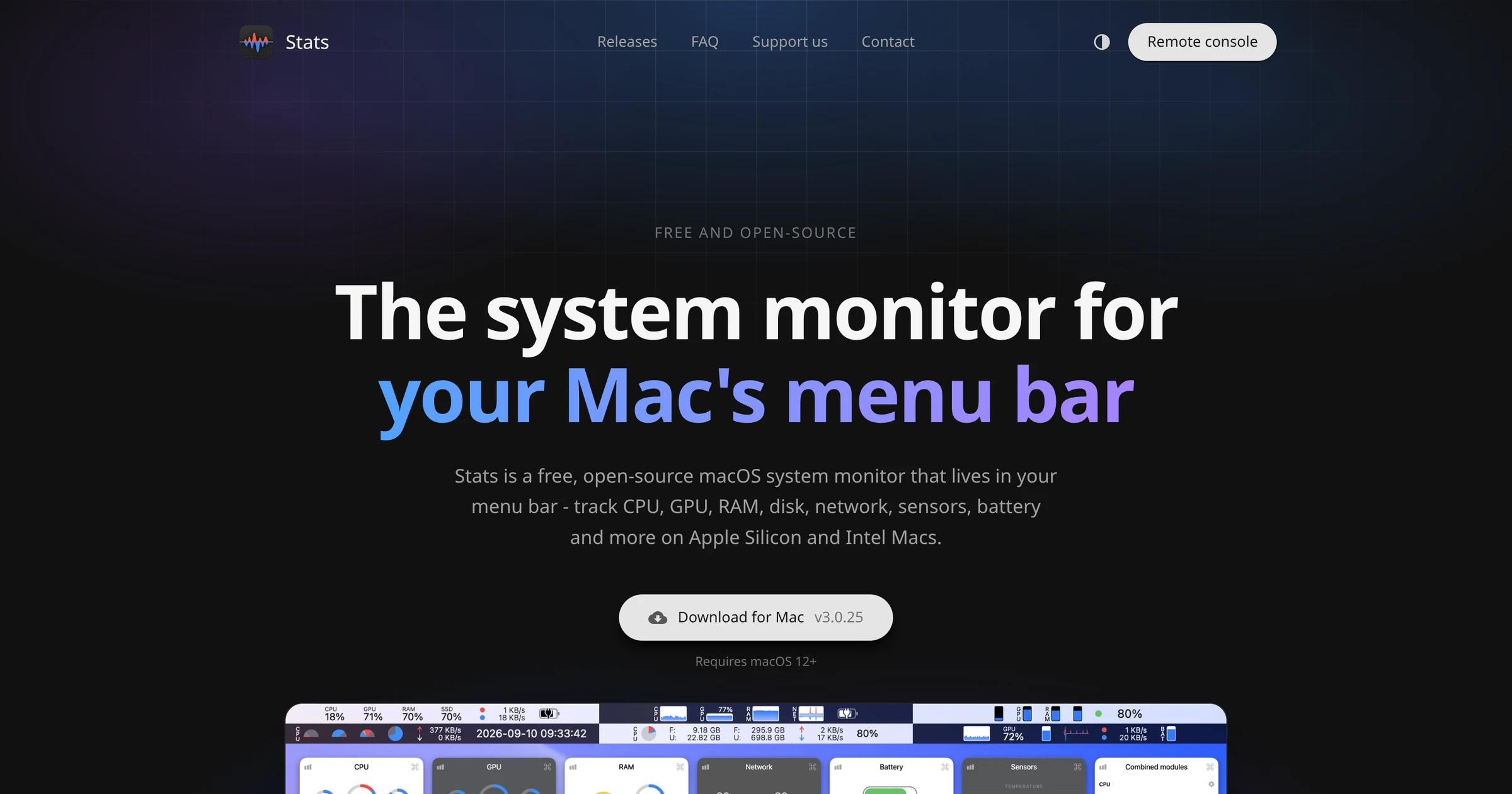
Covers CPU, GPU, RAM, disk, network, sensors, battery, Bluetooth, and clock as nine modules that can each be enabled, disabled, or configured separately. Show only the data you need in the menu bar without filling it with unused widgets.
Every module supports multiple display styles: mini line chart, bar chart, pie chart, gauge, speed label, dot, text, and more. Combine widget types from different modules, reorder them, and color them independently to match the information density and visual style that suits your workflow.
Runs natively on M1, M2, M3, and later Apple Silicon chips as well as Intel Macs. The sensors module reads SMC data for the specific chip in use, so CPU core temperatures, GPU utilization, and fan speeds reflect the actual hardware on macOS 12 and newer.
Shows the battery percentage of connected Bluetooth accessories: keyboards, mice, headphones, and other paired devices. Data appears in the menu bar or in the Bluetooth module's dropdown, so you see a battery warning before a keyboard or mouse dies mid-session.
The headless SSH install script configures Stats as a remote monitoring agent linked to the System Stats web dashboard. Run the script over SSH and Stats streams CPU, GPU, RAM, disk, and network metrics to a web interface accessible from any device, without needing screen access to the Mac.
Stats makes two external requests: update checks against mac-stats.com and GitHub, and a request to retrieve the public IP address for the network module's display. No usage data, crash reports, or analytics are collected. Both endpoints can be blocked through a network filter if you want to disable even those requests.
Features
- Nine independent monitoring modules
- 13 customizable widget styles
- Apple Silicon and Intel support
- Bluetooth device battery tracking
- Remote monitoring via web dashboard
- No telemetry or analytics
How to install
Install Stats on macOS using Homebrew or download the signed .dmg installer.
brew install statsOr download the signed installer from GitHub Releases: https://github.com/exelban/stats/releases/latest
Recommended for this setup
Strengths
- MIT license, completely free: Every feature is available at no cost under the MIT license. No paid tier, no feature gating, and no ads. You can inspect, fork, and modify the source code without restriction. Compared to iStat Menus (paid license) or iStatistica (paid upgrade), Stats costs nothing and places no commercial constraints on use.
- 43,000+ stars, seven years of active development: The repository has 43,202 stars and 1,620 forks, with the last push recorded in November 2026. The project has been actively maintained since May 2019, shipping updates that track macOS changes including Apple Silicon support and new SoC sensor keys. That longevity means macOS compatibility issues are caught and fixed quickly.
- 100 million downloads, 41 languages: The product site reports over 100 million downloads. The app ships in 41 translated languages, contributed and maintained by community members. For teams or households with non-English speakers, the UI is already localized rather than relying on machine translation.
- Direct hardware sensor access: Reads temperature, voltage, power, and fan-speed sensors from the Mac's SMC without proxying through third-party APIs. This gives Stats first-party access to the same hardware data sources commercial menu bar monitors use, with no additional permission or background service required beyond the app itself.
Trade-offs
- Fan control is in legacy mode: The fan control feature no longer receives updates or bug fixes. It works acceptably on older Intel Macs but is not supported for new hardware or macOS releases. If fan curve management is your primary need, Stats is not the right choice; a dedicated fan control tool is more appropriate.
- macOS desktop widgets need a manual toggle: Desktop widgets (the macOS widget layer, not the menu bar items) are disabled by default due to a known issue with high data load in the system process (chronod). To enable them, open Stats Settings and toggle the macOS widgets option on. This step is not obvious on first use.
- macOS 26 requires an explicit menu bar permission: macOS 26 added a privacy control under System Settings that requires apps to be explicitly allowed to show menu bar items. If Stats icons do not appear after install, navigate to System Settings and toggle Stats on. This applies to any app using the menu bar API, but it is a friction point on first setup under macOS 26.
- Open source but not open contribution: The developer does not review or merge unsolicited pull requests because testing across Mac models and macOS versions takes more time than writing the feature. For teams that need to patch the app themselves, the MIT license allows forks, but changes will not land upstream without an issue discussion first.
Tech stack
FAQ
The recommended path is Homebrew: run `brew install stats` in Terminal. Alternatively, download `Stats.dmg` from https://github.com/exelban/stats/releases/latest, open it, and drag Stats to the Applications folder. For headless SSH installation with remote monitoring enabled, the README provides a one-line curl script. Stats requires macOS 12 (Monterey) or newer; a legacy build for older versions is available at mac-stats.com/downloads.
No. Stats makes two types of external requests: update checks against mac-stats.com and GitHub, and a request to mac-stats.com to retrieve your public IP address for the network module's display. No analytics, crash reports, or usage data are sent. If you want to block these requests entirely, disable the public IP display in the network module settings and block both endpoints with a network filter tool like Little Snitch.
macOS controls menu bar icon order, not Stats. To reorder any menu bar icon on macOS Mojave (10.14) and later, hold the Command key and drag the icon to the desired position, then release Command. The order may also change on its own after the first reboot following a Stats install.
On macOS 26, a new privacy control under System Settings requires apps to be explicitly allowed to display menu bar items. Open System Settings, go to Menu Bar, and toggle Stats on. If you are on an earlier macOS version and icons are still missing, check that at least one module is enabled in Stats Settings and that it has at least one widget style active.
The highest-impact modules are Sensors and Bluetooth, which read hardware data frequently. Disabling either one can reduce Stats' CPU usage and energy draw by up to 50% according to the README. Disable unused modules in Stats Settings to bring energy impact down to only the data you actively monitor.