
terminal-browser
Full Chromium browser rendering inside your terminal
Replaces —
Who it's for
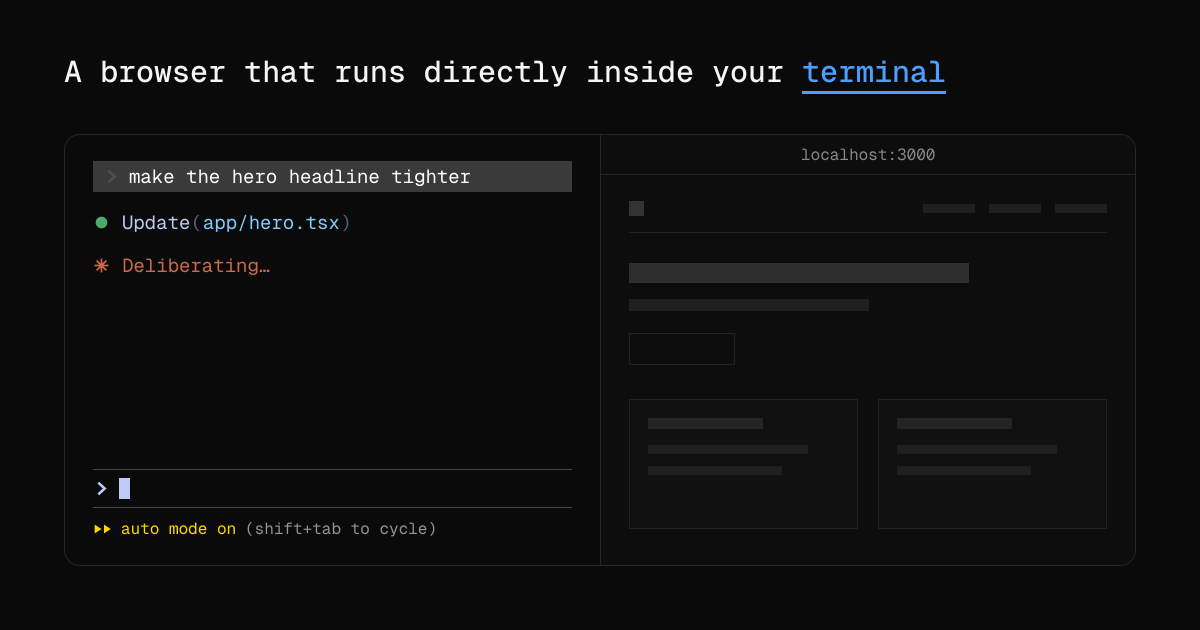
Keep a coding agent and a live browser in the same terminal tab. The agent can open URLs, test UI changes, and render HTML output via `terminal-browser action` without you relaying what is on screen.
Your AI agent workflows do not involve web output. A headless browser or curl-based fetch is simpler when you do not need to review browser-rendered results as part of the coding loop.
Run `terminal-browser open localhost:8080` on a remote machine inside your SSH session and the browser renders there without port forwarding. The preview stays scoped to the remote host's filesystem and network.
You are already comfortable with SSH port forwarding and a local browser, or your remote environment is a cloud IDE like Codespaces that provides its own port preview panel.
Use app mode to ship a terminal application built with web technology. The `--app-mode` flag removes browser chrome and shortcuts, leaving a full-screen web app frame inside the terminal with access to Electron preload and main-script APIs.
Your target is a standard web app for end users in a browser. App mode is for developers intentionally building terminal-facing tools, not a deployment target for general web apps.
The problem
When you pair a coding agent with web tasks, the browser lives in a separate window. The agent cannot see the page, cannot interact with it, and you have to manually relay what is on the screen. Context switching between a terminal agent session and a browser tab breaks the workflow every time the agent needs to check a result or test a UI change. The challenge is compounded over SSH. Previewing a website running on a remote machine requires port forwarding or SSH tunnels, adding friction to every iteration. Text-only terminal browsers show markup without JavaScript, which means modern web apps never render correctly in the terminal. Until now there was no way to get a real, pixel-rendered browser inside the terminal itself.
How it works
Uses Electron's offscreen rendering API to capture pixels generated by Chromium directly from the GPU, then displays them inside the terminal via the kitty graphics protocol. JavaScript, CSS animations, and single-page apps all render correctly. DevTools are available via Cmd+Shift+I (macOS) or Ctrl+Shift+I (Linux).
The `terminal-browser action` command exposes an agent-browser compatible CLI so AI coding agents can open URLs, navigate pages, and interact with open browser sessions programmatically. This lets a coding agent test a checkout flow, visualize an HTML plan, or inspect a UI without manual window switching.
Run `terminal-browser open localhost:8080` directly on a remote machine over an SSH connection and the browser renders there without setting up port forwarding or SSH tunnels. The session stays scoped to the remote terminal tab, making remote web development significantly less tedious.
The `--split right` flag opens the browser in a split pane next to your active session. AI coding agents use this automatically when they call `terminal-browser open <url>`, keeping agent output and browser side by side in one terminal tab.
The `--app-mode` flag disables the toolbar, tab strip, shortcuts, and right-click menu, turning the browser into a chrome-less app frame. Combined with `--preload` and `--main-script` options, it lets you build terminal-native apps using web technology, with the `terminal-code` project as a production example.
Features
- Full Chromium Rendering in the Terminal
- Agent-Compatible Browser CLI
- SSH Remote Preview Without Port Forwarding
- Split Pane Browser Launch
- App Mode for Terminal Web Apps
How to install
Install on macOS or Linux using the official install script.
curl -fsSL https://terminal-browser.sh/install | bashRecommended for this setup
Strengths
- MIT License, Free to Self-Host: The MIT license means you can run terminal-browser on your own machines for any purpose, commercial or personal, with no licensing fees. There is no managed cloud tier required; the full feature set is available in the self-hosted install.
- Real Browser Engine, Not a Text Renderer: Unlike w3m or Lynx, which strip JavaScript and render only markup, terminal-browser runs Chromium. Modern web apps, React SPAs, and canvas-based tools render the same way they would in a standalone browser window. Trackpad scrolling and infinite canvas work correctly.
- Agent and Browser in One Terminal Tab: The split-pane design and agent CLI mean an AI coding agent and its target browser share a single terminal tab. The agent does not need screen capture or a separate headless browser process; it controls an open terminal-browser session directly via the CLI.
- Broad Terminal Compatibility: Any terminal that implements the kitty graphics protocol works: Ghostty, Kitty, cmux, Herdr, and tmux, plus 50 or more others. This covers most modern terminal emulators used in developer workflows, with no vendor-specific plugin required beyond protocol support.
Trade-offs
- Requires a Kitty-Protocol-Compatible Terminal: terminal-browser only renders in terminals that support the kitty graphics protocol. The default macOS Terminal.app does not support it. Users on unsupported terminals need to switch to a compatible emulator such as Ghostty, Kitty, or tmux before installing.
- macOS and Linux Only, No Windows Support: Windows is not supported. The README lists only macOS and Linux as target platforms. The background Swift component that enables smooth scrolling and trackpad input is platform-specific, and no Windows install path exists at this time.
- Chrome Extensions Not Yet Available: Chrome extension support is on the roadmap but not yet shipped. Developers who depend on specific browser extensions for their workflow will need to keep a separate browser window for extension-dependent tasks until this ships.
Tech stack
FAQ
Any terminal that implements the kitty graphics protocol works, including Ghostty, Kitty, cmux, Herdr, and tmux. The project lists 50 or more compatible terminals. The default macOS Terminal.app does not support the kitty graphics protocol and will not display the browser.
Yes. Run `terminal-browser open <url>` on the remote machine inside your SSH session and the browser renders there without setting up port forwarding. The session is scoped to the remote host, so you see the site as it runs on that machine.
Yes, via the `terminal-browser action` command, which exposes an agent-browser compatible CLI. Agents running in tools like Claude Code can open URLs, interact with pages, and visualize HTML output by calling terminal-browser CLI commands directly from the agent session.
MIT. The MIT license lets you use, modify, and distribute the software for any purpose, including commercial projects, with no restrictions beyond attribution. You can run it on your own machines at no cost indefinitely.
No. terminal-browser supports macOS and Linux only. The smooth scrolling and trackpad input layer depends on a platform-specific Swift component, and no Windows install path is available or currently on the roadmap.