
Pixtamer
Native Mac image optimiser, on-device, private, MIT-licensed
Replaces Squash, Optimage
Who it's for
Pixtamer handles the batch export step after photography or screenshot collection: format conversion, compression, and consistent naming in one pass. The responsive width preset generates all breakpoint variants automatically, fitting Next.js, Astro, or any framework that expects multiple image widths.
If your build pipeline already handles image optimization at build time through a plugin such as next/image or a Vite image plugin, an on-device batch tool adds a redundant step for most assets.
Designers can run a Pixtamer preset to convert exports from Figma or Sketch into compressed WebP or AVIF files with predictable naming, reducing back-and-forth over format and file size when handing off to developers.
If your design tool already exports to the required web formats with consistent naming built in, Pixtamer adds little over that existing step.
The App Sandbox and no-network-access entitlement mean images never leave the Mac during processing. Studios or agencies working under NDA with unreleased product assets get an OS-enforced guarantee that files do not pass through any external server.
If your team already processes images through a self-hosted pipeline on a private server, the on-device privacy guarantee Pixtamer provides is already covered by your existing setup.
The problem
Preparing images for the web means running several tools: a resize step, a format conversion, a compression pass, and manual renaming to produce consistent filenames for a project. Online converters handle some of this but upload files to external servers with no guarantee about how long they keep them. Command-line tools such as cwebp or ImageMagick handle batches but require shell scripting and provide no visual confirmation of before/after file sizes. For developers and designers who repeat the same export job across multiple projects, the pain is constant inconsistency: compression settings vary per session because there are no presets, file naming requires manual attention each time, and there is no easy way to verify that output files are actually smaller than their originals.
How it works
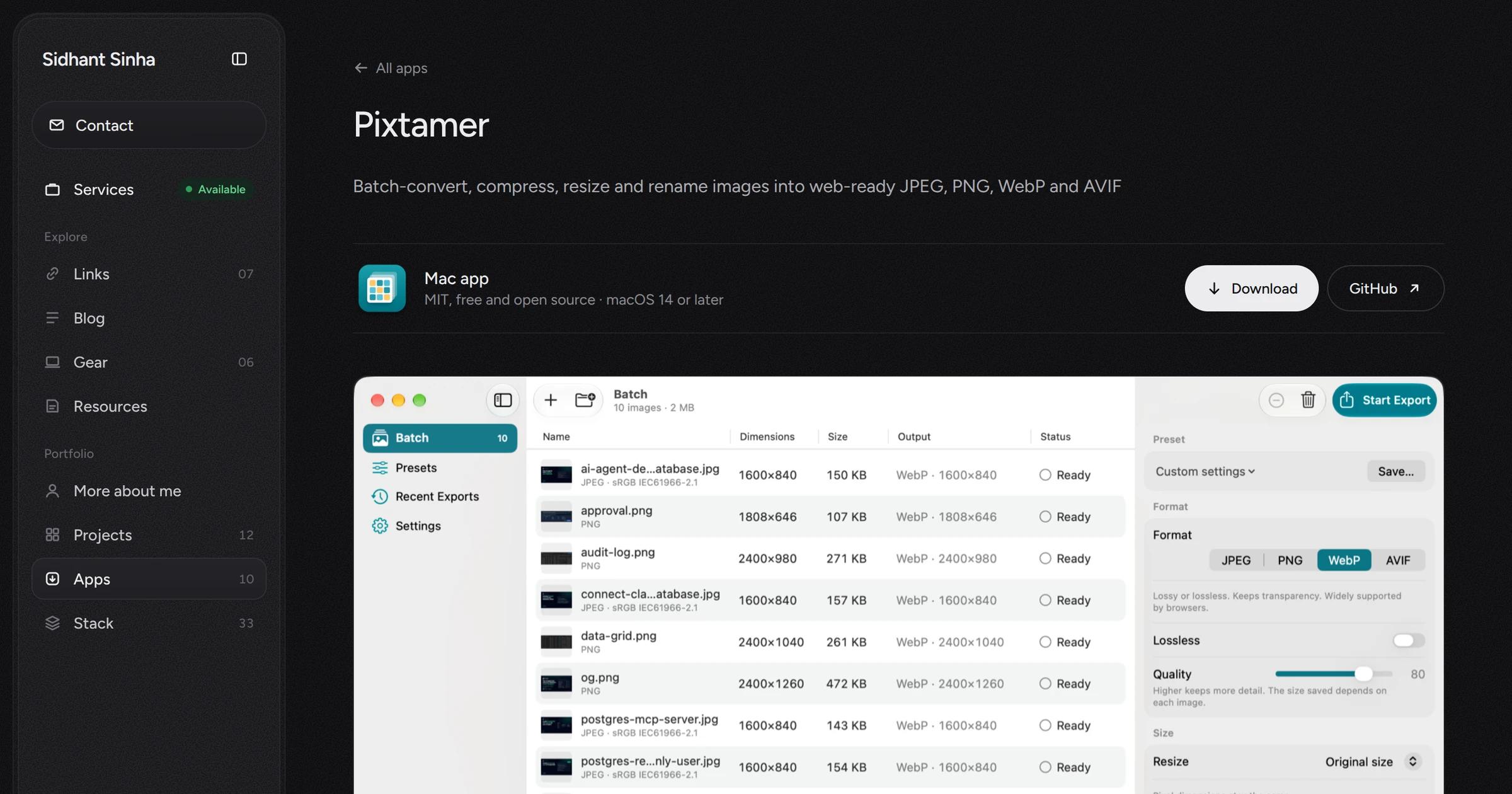
Pixtamer outputs all four modern web formats in one workflow. WebP processing uses bundled libwebp 1.6.0 for lossy or lossless export. AVIF uses Apple Image I/O and runs a launch-time encoder check; it is available when the current Mac's encoder passes the test.
Export multiple resized versions of each source image in one batch pass. A preset can produce a 400w, 800w, and 1200w variant from the same source file without running separate batches. Squash and Optimage do not include this capability in their batch workflows.
Save format, compression quality, resize dimensions, and a rename template together as a named preset. Switch between project types with one click. Pixtamer applies the preset to the entire batch consistently, so settings do not drift between sessions.
Rename exported files using patterns such as {name}-{width} or {name}@2x. Pixtamer prevents collisions by never overwriting existing destination files and never modifying source originals, so running a preset twice on the same folder is safe.
Pixtamer runs with no network access, which means images cannot be uploaded even accidentally. The app is sandboxed by macOS, which enforces this constraint at the OS level. There is no account, no analytics, and no cloud step in the workflow.
Each processed image shows its original and output file size after the batch completes. This lets you confirm compression savings before discarding originals or committing to a format choice.
Features
- Export to JPEG, PNG, WebP and AVIF
- Responsive width exports
- Reusable presets
- Template-based file renaming
- On-device processing with App Sandbox
- Before/after file size display
How to install
Install with Homebrew after tapping the maker's cask repository.
brew tap heysidhant/tap
brew trust heysidhant/tap
brew install --cask pixtamer
Recommended for this setup
Strengths
- MIT license with no purchase price: The full app is MIT-licensed and free to download. Unlike Squash and Optimage, which each carry a purchase price, Pixtamer is available at no cost and its source code is on GitHub under the MIT license.
- Sandboxed with no network access: The app's App Sandbox includes no network entitlements, so images cannot leave the Mac during processing. For teams handling client work or proprietary assets, this is a verifiable OS-level guarantee, not just a privacy policy claim.
- Responsive width exports in one batch: Pixtamer can export several resized versions of each image in a single batch run. Teams building responsive image sets for web breakpoints get all size variants from one preset instead of running separate batches per size.
Trade-offs
- WebP output strips metadata and colour profile: WebP files exported by Pixtamer carry no EXIF metadata or ICC colour profile. This is a documented limitation of the current libwebp integration. For workflows that require colour profiles, PNG or JPEG are the only formats that retain them.
- AVIF not verified on macOS 14 or 15: AVIF export depends on Apple Image I/O and runs a launch-time encoder test. The README notes it has only been verified on macOS 27. Users on macOS 14 or 15 should test AVIF output before relying on it for production batches.
- macOS 14 or later required, no other platforms: Pixtamer is a native SwiftUI app for macOS 14 or later. There is no Windows or Linux version. Teams with mixed operating systems cannot use it as a shared standard tool, and Macs running macOS 13 or earlier are excluded.
- PNG output is always lossless: PNG export applies no palette reduction, so photos saved as PNG are often larger than the same image as JPEG or WebP. This is a documented design choice. For photographic content, JPEG or WebP produces substantially smaller files.
Tech stack
FAQ
Yes. Pixtamer is MIT-licensed and free to download and use with no trial period, in-app purchase, or subscription. It is available as a signed DMG from GitHub Releases and as a Homebrew cask.
No. Pixtamer is sandboxed with no network access. All image processing happens locally on your Mac and no files are transmitted to any external server. The App Sandbox enforces this at the OS level, not just in the app's code.
Pixtamer requires macOS 14 (Sonoma) or later. AVIF export has only been verified on macOS 27 as of the current release, so users on macOS 14 or 15 should test AVIF output before relying on it in production.
All three target Mac image optimization. Pixtamer is MIT-licensed and free; Squash and Optimage each carry a purchase price. Pixtamer adds responsive width exports and template-based renaming that neither paid tool provides in the same batch workflow. Squash and Optimage have longer track records in the category.
Yes. Download the signed DMG from GitHub Releases at https://github.com/heysidhant/pixtamer/releases/latest, open it, and drag Pixtamer to your Applications folder. Builds are signed with a Developer ID and notarized by Apple, so they open without security warnings on supported macOS versions.