
mRemoteNG
Tabbed multi-protocol remote connections manager for Windows
Replaces Devolutions Remote Desktop Manager, Royal Ts, Mobaxterm
Who it's for
Sysadmins who maintain a mix of Windows Servers (RDP), Linux hosts (SSH), and network devices (Telnet) can organize all connections in one folder tree and switch between sessions with a single click. The portable ZIP means they can carry the same connection inventory to any Windows workstation.
You primarily work from macOS or Linux, or your team needs a shared credential vault where multiple users can access the same connection list from different machines simultaneously.
Technicians can run the portable version from a USB drive on client machines with no install. Having all RDP, VNC, and HTTP management sessions accessible from one tool reduces the overhead of maintaining separate remote access utilities for each session type.
Your organization requires audit logging of all remote access sessions through a central server. mRemoteNG logs connections locally only; centralized session recording requires additional infrastructure.
Teams looking to replace paid per-seat connection managers can export the connection XML file and share it among team members, giving everyone the same server list at no cost. This covers the basic shared-access case without a central server or subscription.
Your team needs live credential synchronization, role-based access control per connection, or a session gateway for auditing. Those require Devolutions Remote Desktop Manager, Royal TS, or a comparable paid team tool.
The problem
Managing a mix of servers and network devices means juggling multiple tools: Remote Desktop for Windows servers, PuTTY or another SSH client for Linux, a VNC viewer for headless desktops, and a browser for HTTP-based admin panels. Each tool maintains its own connection list, its own credential store, and its own window. Teams with more than a handful of servers end up tab-switching constantly, maintaining duplicate bookmarks, and re-entering credentials across separate applications. The deeper problem is consistency. When connection settings live in five separate tools, there is no single place to verify who has access to what, update a changed IP, or confirm that a server's credentials are current. For regulated environments where access logs matter, scattered tooling makes documentation harder than it needs to be.
How it works
Connects to servers and devices via RDP, VNC, SSH, Telnet, HTTP/HTTPS, rlogin, Raw Socket, PowerShell remoting, and AnyDesk from a single window. Each protocol maps to its native handler so you get full protocol fidelity without leaving the application.
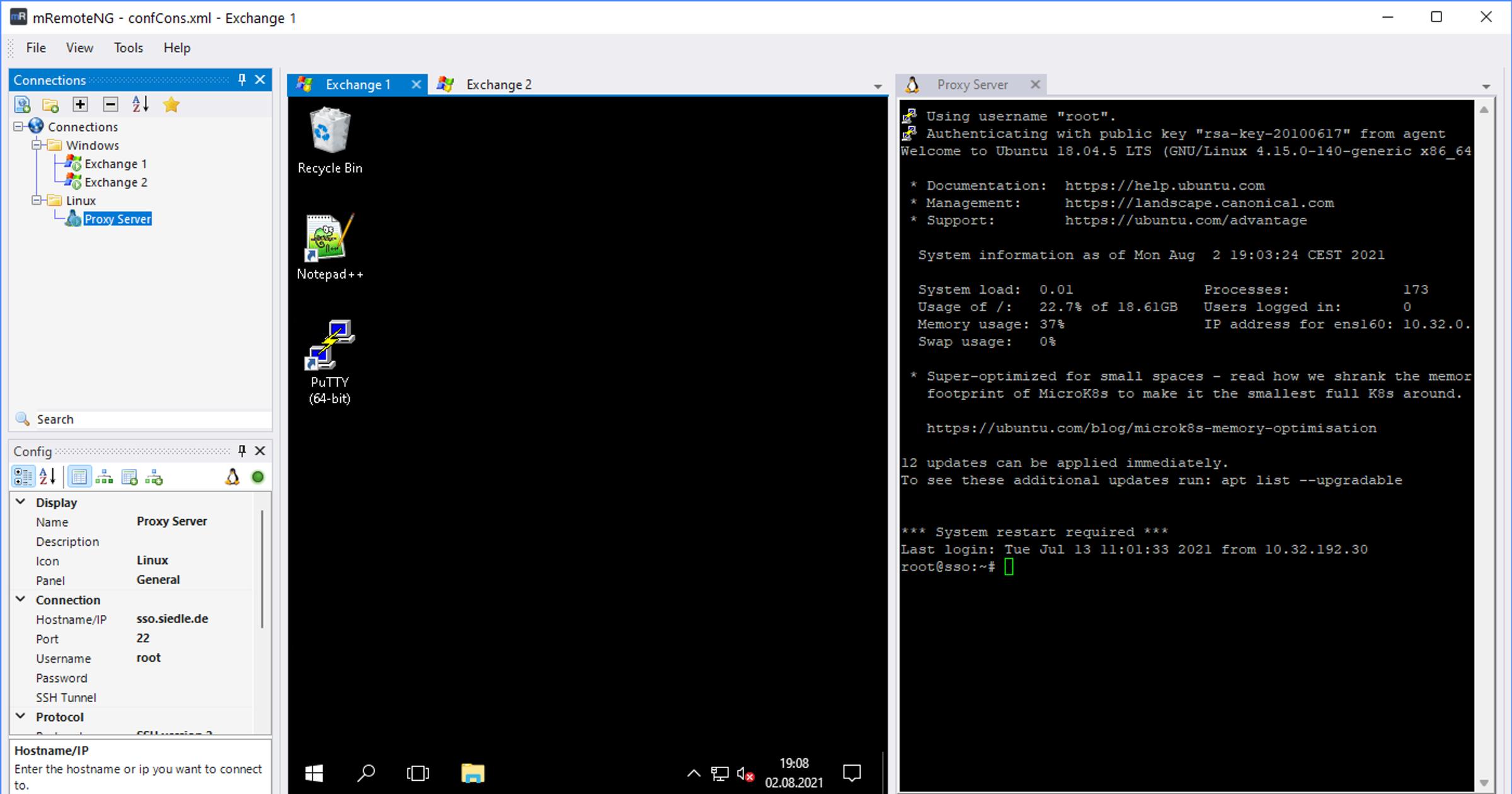
Each active session opens as a tab within mRemoteNG, so switching between a Windows Server RDP session and a Linux SSH session takes a single click rather than alt-tabbing between separate windows.
The connection panel groups servers into folders you define: by environment, by region, or by team. Filtering by name narrows the list immediately when you have hundreds of connections. Folders can be nested for hierarchical organization of large inventories.
Distributed as either an MSI installer or a portable ZIP, so it can run from a USB drive with no installation and no administrator rights for the portable version. Useful for technicians who work across multiple Windows machines.
Plugins extend the base application. The included plugin set covers port scanning, SSH file transfer, AWS connections, and multi-address support. Community-built tools include an OpenVPN integration script and PSmRemoteNG, a PowerShell module for scripting connection file generation.
Features
- Multi-Protocol Support in One Interface
- Tabbed Connection Management
- Connection Folder Organization
- Portable and Installer Deployment Options
- Plugin Architecture
How to install
Download the MSI installer or portable ZIP from GitHub Releases: https://github.com/mRemoteNG/mRemoteNG/releases/latest
Recommended for this setup
Strengths
- Free with No Per-Seat Licensing: GPL-2.0 licensed with no commercial license required for business use. Teams of any size can run it without per-seat fees or enterprise tier upsells. Unlike Devolutions Remote Desktop Manager, which charges per user, or MobaXterm's Professional edition, mRemoteNG has no cost for the core software.
- All Connection Data Stays Local: There is no cloud sync, no account requirement, and no vendor server in the data path. Connection files, including saved credentials, are stored on disk under your control. This matters for organizations with strict data residency requirements or air-gapped network environments.
- Broad Protocol Coverage Without Third-Party Tools: Supporting nine protocols natively means you can retire PuTTY, a standalone VNC viewer, and browser-based admin panels in favor of one consistent interface. The protocol list covers the typical Windows enterprise toolkit: RDP, SSH, VNC, Telnet, HTTP/S, and PowerShell remoting.
- Portable Version for Multi-Machine Use: The portable ZIP needs no installation and leaves no registry entries behind. Technicians can carry mRemoteNG on a USB drive and use it on any Windows machine they work on, keeping their connection inventory consistent across workstations.
Trade-offs
- Windows-Only: mRemoteNG runs only on Windows. IT teams that work from macOS or Linux workstations cannot use it directly. Cross-platform alternatives like Royal TS (which has macOS and iOS versions) or Devolutions Remote Desktop Manager may be a better fit for mixed-OS admin teams.
- High Open Issue Count: The repository has 805 open issues. The project is maintained by a small team, and response times on specific edge-case bugs or feature requests can be slow. Checking the issue tracker before committing is worthwhile if you depend on a specific protocol edge case.
- Credentials Stored in a Local File: Saved credentials are stored in a connection file on the local disk, accessible to the Windows user running the application. In environments with shared workstations or where centralized credential vaulting is required, a dedicated secrets manager or the team features in a paid tool is a better fit.
- Source Build Requires Visual Studio on Windows: Building from source requires Visual Studio 2026 and the .NET 11 SDK on Windows. There is no cross-compile path. For contributors or organizations that need custom builds for security compliance, this limits who can produce a build to those with the full Visual Studio toolchain.
Tech stack
FAQ
Yes. mRemoteNG is GPL-2.0 licensed, which permits commercial and business use at no cost. Any organization can run it without a license fee. The GPL-2.0 does require that if you distribute a modified version of mRemoteNG, you release that modification under the same GPL-2.0 license.
No. mRemoteNG is a Windows-only application built on .NET targeting Windows 10, Windows 11, and Windows Server versions from 2012 R2 through 2022. Users on macOS or Linux need a different tool; Royal TS has a macOS client and Devolutions Remote Desktop Manager supports cross-platform access.
Credentials are saved in a connection file stored on the local disk, by default under the Windows user's AppData folder (%APPDATA%\mRemoteNG). The file is accessible to the Windows user running the application. For environments requiring centralized credential vaulting, a dedicated secrets manager or a paid team tool is a better fit.
mRemoteNG supports RDP (Remote Desktop Protocol), VNC (Virtual Network Computing), SSH (Secure Shell), Telnet, HTTP/HTTPS, rlogin, Raw Socket Connections, PowerShell remoting, and AnyDesk. This covers the core toolkit for managing mixed Windows and Linux server environments.
On Windows 11, run `winget install -e --id mRemoteNG.mRemoteNG` from the command line. On Windows 10 or Server editions, download the MSI installer or portable ZIP from GitHub Releases (https://github.com/mRemoteNG/mRemoteNG/releases) or from mremoteng.org/download. The portable ZIP runs without installation and without administrator rights.